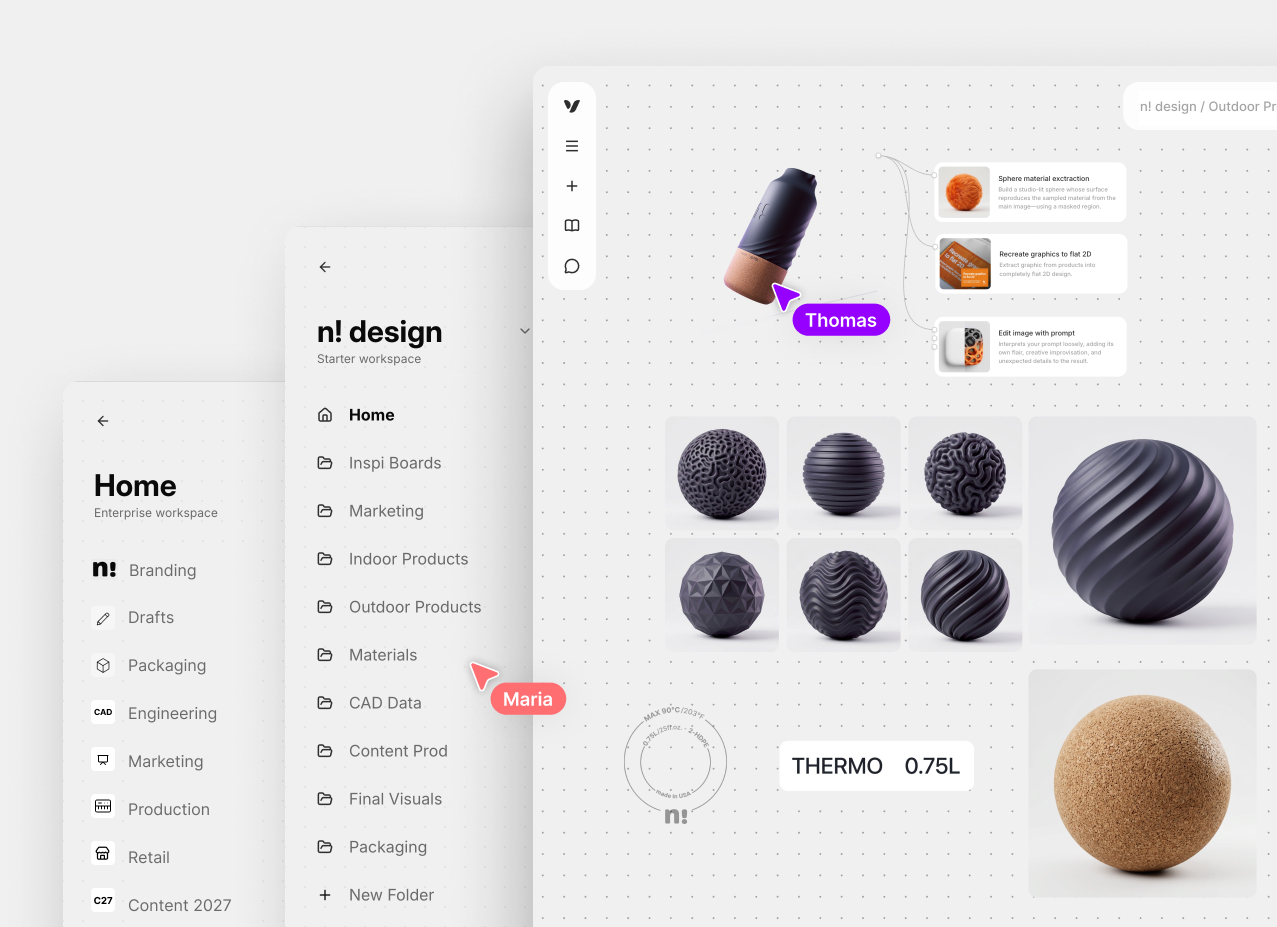
Introducing Vectary Canvas, a new space for AI-accelerated ideation. → Canvas

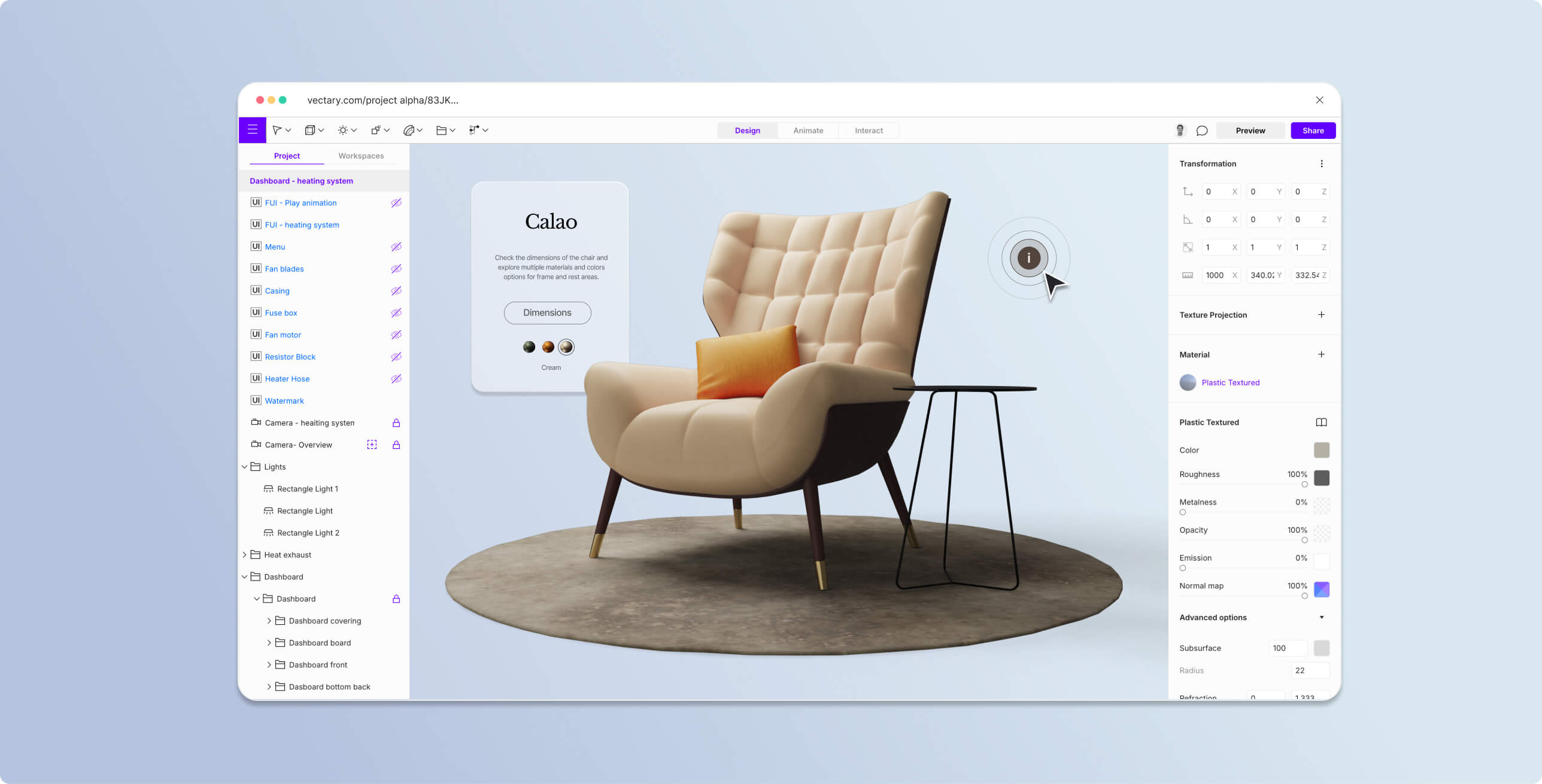
Work with a powerful, fully-featured 3D design Studio

In-browser, no-code, real-time rendering.
Reinventing the way 3D content is created and distributed.
Sign up

Start your projects in Design mode

Design mode is the primary mode in Vectary Studio, providing all the features necessary to build, edit, and control objects, lights, textures and at UI.

3D import & optimization

Import a wide range of 2D and 3D files or ready-made object from the Vectary library, with a simple drag and drop.

Environment

Use presets of HDRi or upload your own, whether you need a real-life settings or stylized light for a more artistic output.

Lighting

Apply lights that behave as 3D objects on the scene, or use emission material setting to turn any object into a source of light.

Texturing

Achieve photorealistic renders and embeds thanks to the library of materials. PBR standard assures high-quality level visuals.

Stickers and decals

Wrap 3D objects with 2D graphics. Use it for branding, mockups, and important details to enhance the realism of your design.

Cameras

Set multiple cameras in studio to focus the attention of the viewer on specific elements, under specific angles.

Post-processing

Make your 3D designs look more polished by using advanced effects like Anti-aliasing, Bloom, Reflections, Soft shadows and more.

Floating UI’s

Create 2D menus and annotations to operate changes on the 3D models and provide detailled informations.

Hotspots & variants

Use hotspots to trigger interactions and display annotations. Create variants groups to switch between different object options.

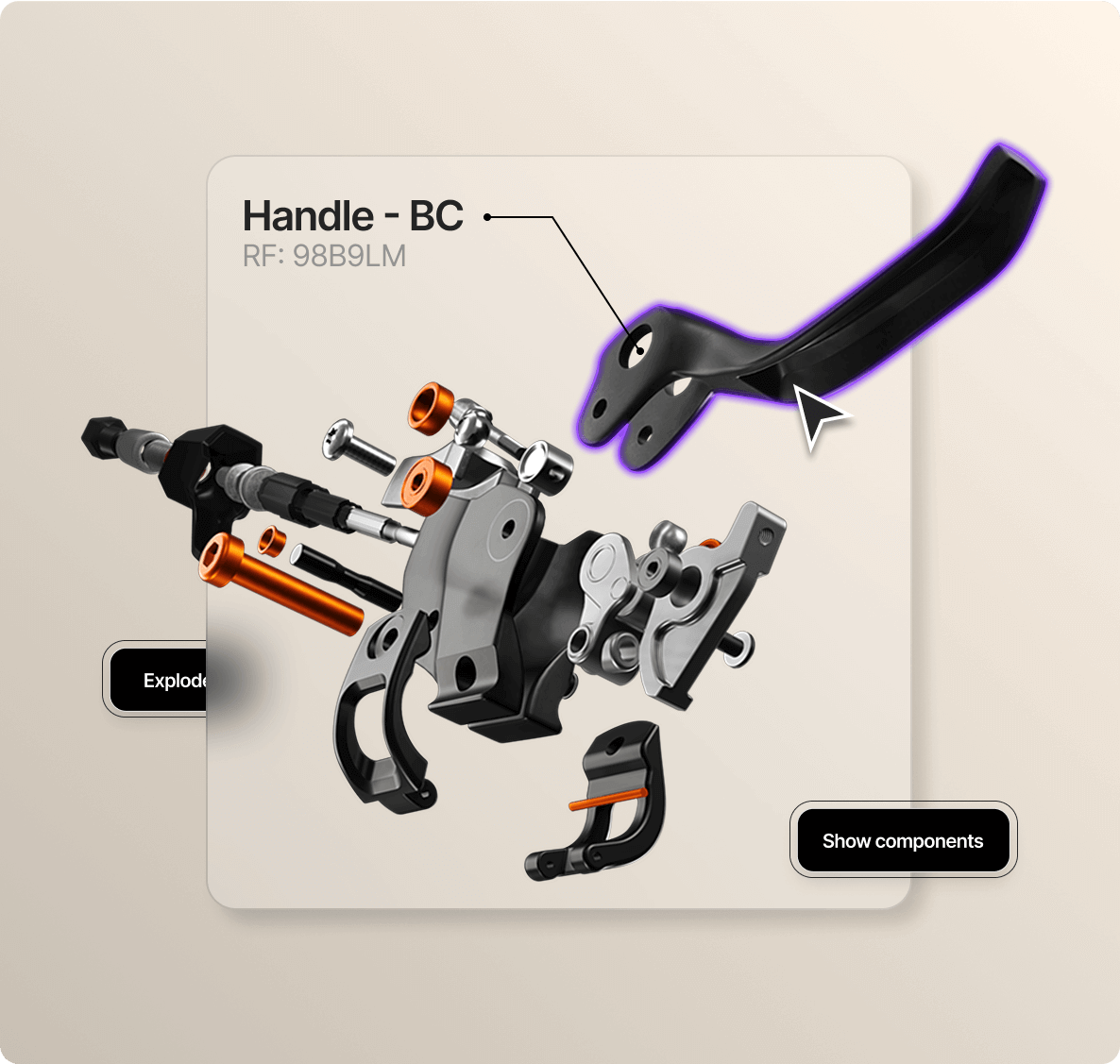
Animate and explain with different movements

Work with an easy to use timeline to assign start and stop key frames for one of multiple objects. Explode, assemble, or connect different elements using smooth transitions.
Learn how to animate elements
Exploded view
Bones animation
Instructional guide
Elements connection

Set up no-code interactive experiences

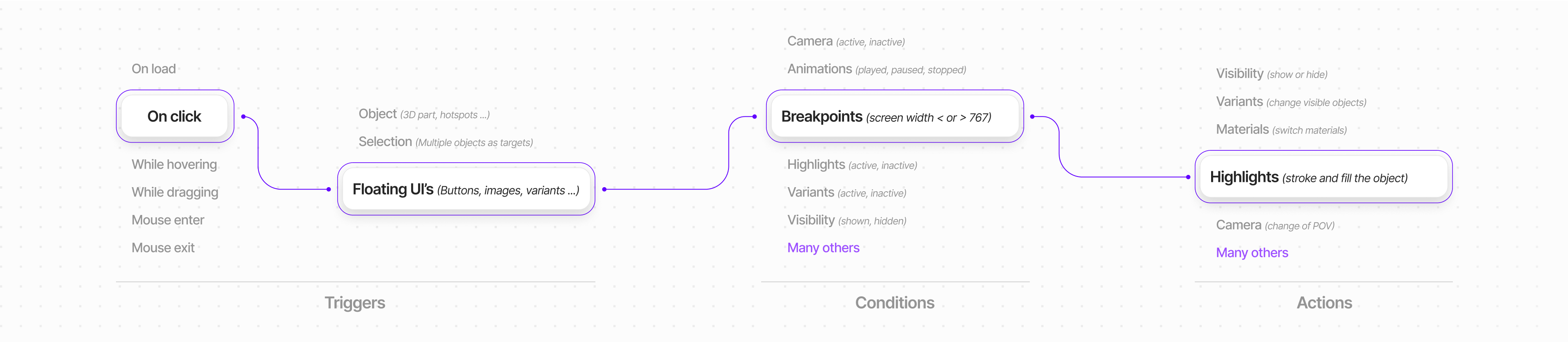
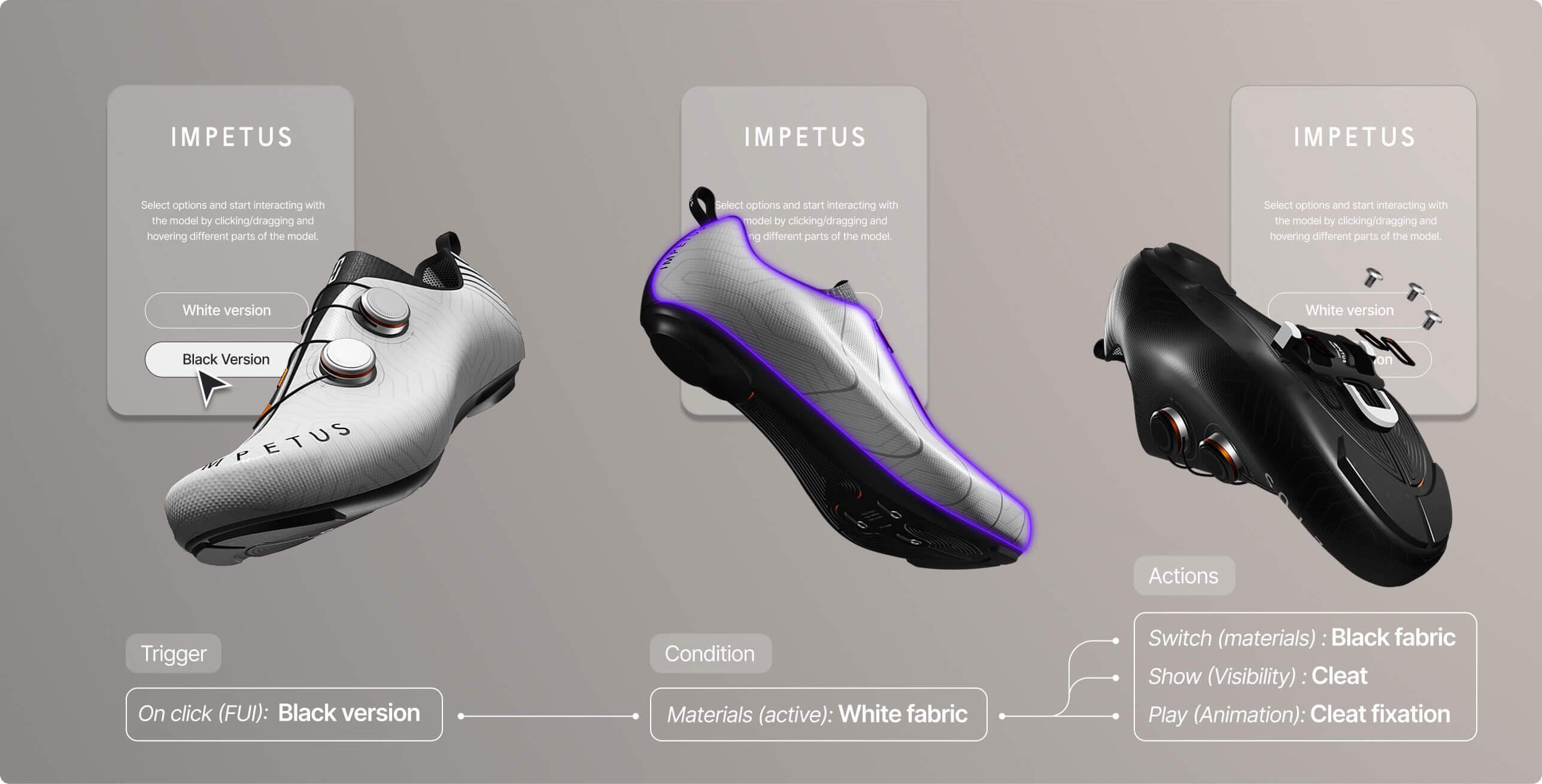
Start by deciding on engagement triggers, conditions and actions. Control the interactive elements of the objects, the UIs and the overall scene.
Learn how

Triggers

Animation triggers are interactive controls, (usually graphic files) in 3D design that enable precise, user-controlled activation.

Conditions

Conditions refer to the specific circumstances in the design that create the rules of the animation to come.

Actions

Actions are the execution of steps assigned to triggers, determining how an object responds within the scene.
Get detailed explanations

Get the most out of all Vectary Studio features with step-by-step guides and instructions.
Documentation

Try Business Workspaces

  • Ideate together in Canvas
  • Create and review 3D as a team
  • Organize projects and control access
  • Publish 3D and AR across every channel
  • Scale with APIs, hosting, and expert support
Talk to our team
Vectary Workspaces with shared folders, team cursors, and a 3D material board